How to use Tuit
Last updated: 23 May 2026
Tuit is a household-admin app for anyone wanting to stay on top of their to-do lists, care routines and shared admin, whether you live alone, with a partner, flatmates or a whole whānau. Here's what each bit does and how to get the most from it.
A quick tour
The five-card tour that greets you on first sign-in, in case you skipped it or want to come back to it.
Tasks for the whānau
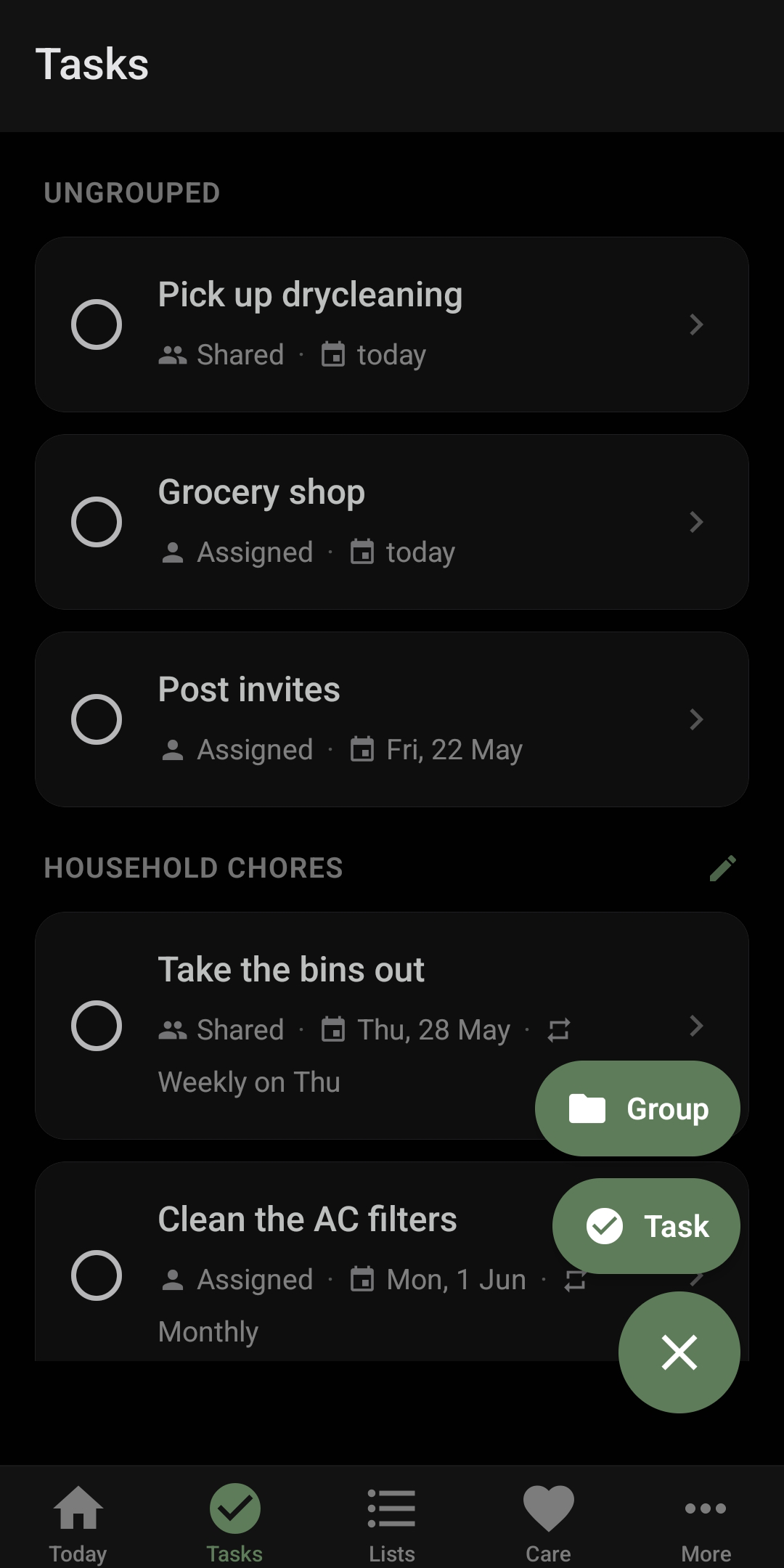
Chores, errands, anything you need to remember. Set a one-off or recurring rhythm and we'll make sure you get a round tuit.
Lists that think for you
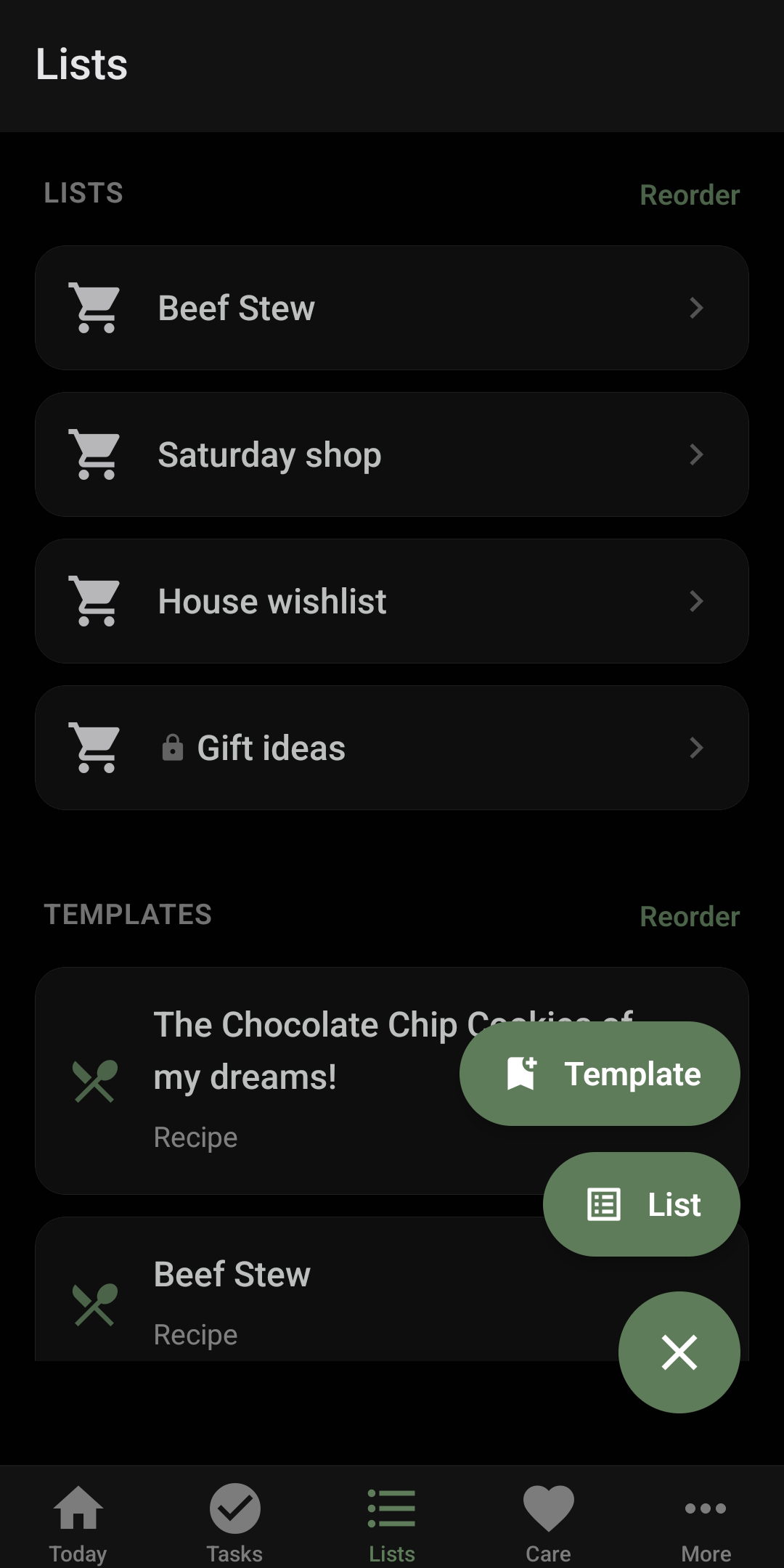
Shared shopping lists, grouped by aisle. Save recipes as templates and apply them to a list with one tap. Quantities aggregate automatically.
Care for everyone
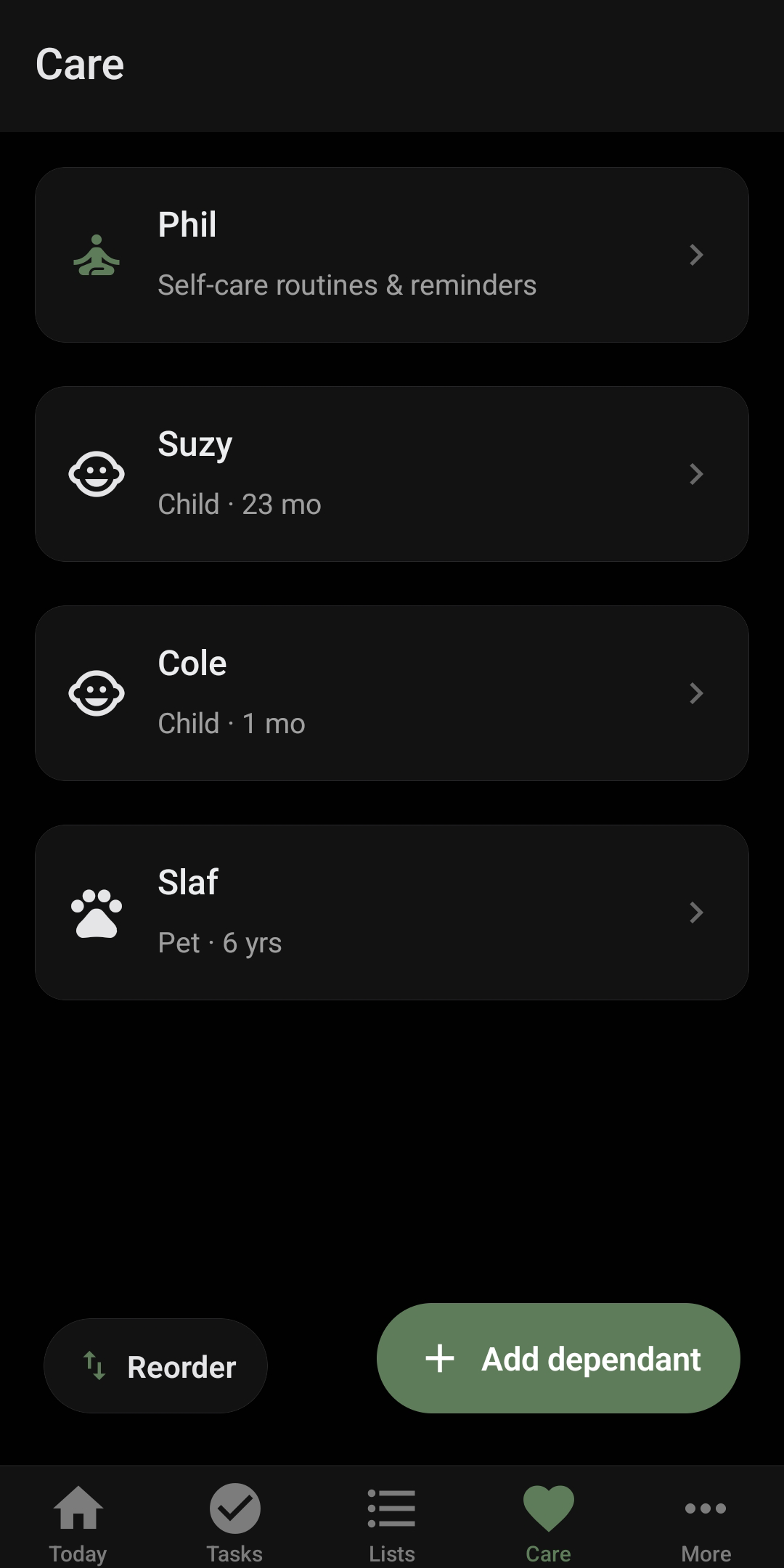
Medication, appointments, exercise routines, dietary reminders. Each is tuned to the cadence that you set.
Today, at a glance
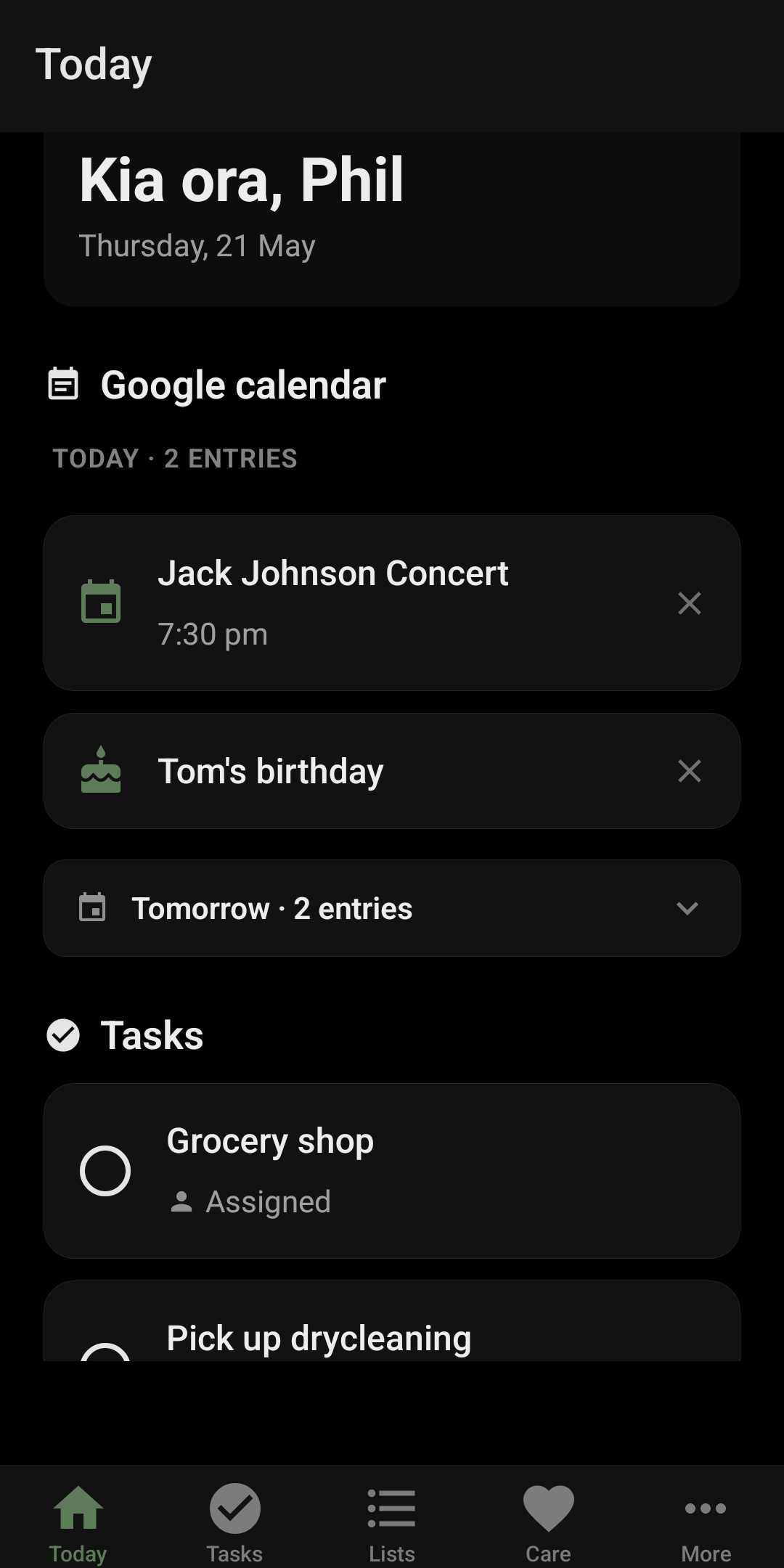
Your day, your tasks, your care items, and your Google Calendar (events, tasks and birthdays) all on one screen.
Better together
Invite members of your whānau to share the load in keeping on top of admin so you can focus your energy on what matters most.
Today
Your day on one screen: chores due now or overdue, care items (medication, exercise, feeds), and what's on your Google calendar (events, tasks and birthdays). The Tomorrow strip below previews what's coming. Pull down to refresh anything that feels stale, or just switch tabs and back. Today auto-refreshes when it regains focus.
Birthdays for anyone you've added as a household subject show up as a Hari Huritau banner. Birthdays from your Google contacts also surface in the calendar bundle.
Tasks
Chores, errands, anything you'd otherwise forget. Tap the FAB to add. Pick a due date and a reminder time and Tuit will push you a notification when it's due, with a Mark done button right on the notification so you don't have to open the app.
Recurrence has two flavours: fixed schedule (e.g. every Monday, regardless of when you last did it) and from completion(e.g. every 3 days from the last time you did it). For the second kind, if you mark it done at 8:33pm one day, tomorrow's reminder shifts to 8:33pm too. The rhythm follows you.
For monthly tasks you can pick either a fixed day of the month (e.g. the 15th) or an Nth weekdaypattern (e.g. the third Tuesday of every month, or the last Sunday). Bins, rent days, monthly catch-ups, all the awkward cadences that don't land on the same date each month.
The Last done · ✎ row on a from-completion task lets you back-date a completion if you forgot to mark it on time.
Shared or assigned. Every task is one or the other. Shared (the people icon) means everyone in your household sees it and anyone can do it. Assigned to a person (the single-person icon) keeps it private to you and that person, no one else sees it. Assigning a task to yourself is how you keep something just for your own eyes.
Groups are optional buckets to organise the Tasks tab. Tap + and choose Groupto create one (e.g. "Household chores", "Garden"), then pick a group when you create or edit a task. Ungrouped tasks sit at the top, groups follow below. Long-press a task to move it between groups quickly. Today ignores groups; it shows everything due in one flat list.
Lists
Shared shopping lists, grouped by aisle for groceries. Add items inline with structured quantities like "500g flour" or "2 cup milk". Tuit aggregates duplicates across the list (and across applied templates) automatically, even when units differ.
Lists can be private (just you) or shared (whole whānau). Toggle from the link row inside a list. Lists can be renamed any time (pencil next to the trash in the header).
Templates
Save a recipe or any reusable item set as a template. Import a recipe directly from a URL (RecipeTin Eats, NYT Cooking, anything with JSON-LD); Tuit scrapes the ingredients, collapses dual-unit lines, rounds fractions, and stages it for you.
Apply a template to an existing list, or use "Start a new grocery list" on the apply sheet. Tuit creates a whānau-shared list named after the template and drops the items in.
Care
Care covers four kinds of recurring health item, each tuned to the cadence that fits:
- Medication.Tap a med's row to see the full doses log (who took what, when). Dosage, frequency (mins to years), "since last dose" or "strict intervals", reminder When due / N before / None. Strict intervals advance from the scheduled slot, not from when you tap done, so taking your 2pm pill at 1:57 still rolls next-due to 3pm.
- Appointment. Date, time, optional location, reminder N minutes / hours / days before. Mark Attendedwhen it's done.
- Exercise. List your moves, pick either set weekdays (M / W / F) or set interval (every N days from completion). Reminders fire on the day or the day before.
- Diet / feeding. Interval mode (every N hours from prior / strict cadence) or scheduled mode (set times of day). For kids you can flag a feed as breastfeeding to track side alternation and add per-feed notes.
Each care subject (you, dependants, pets) has their own screen with all their items and a back-dating pencil on every "last done" row.
Last and next occurrence. Once a recurring medication or diet item has been marked done at least once, editing it shows its last occurrence (the time the next one is counted from) and a next occurrence field. Use next occurrence for a one-off, known deviation, a lie-in, a long drive, without changing the frequency: it shifts only the upcoming dose. For a strictly-timed item the schedule then snaps back to its normal grid afterwards.
Who can see a dependant?On a dependant's screen (next to their name) you choose who in the whānau can see them: all admins (the default, including anyone who joins later), only you, or a chosen few. Your own "Me" self-care subject is always private to you. Other admins never see your Me subject, and a dependant you keep private stays hidden from everyone else.
Who handles this? Care items work a little differently from chores: visibility follows the dependant's sharing, not the assignment. Everyone a dependant is shared with sees all their care items. Choosing Sharedversus assigning an item to one person just sets who's responsible and who gets the reminder, the others can still see it and step in. Handy for things like breastfeeding reminders, where only one parent needs the notification but both should be able to check what's due. Marking a shared item done updates it for everyone at once, no risk of duplicate doses.
Delegating to someone else. When you assign a task or care item to another person it leaves your Today and goes to theirs. If you still want to keep tabs, three optional toggles appear (all off by default): show it on your Today too, send you the reminder as well, and notify you when they mark it done. This works the same for chores and care items.
Calendar
On first sign-in Tuit asks for Google Calendar permission (read-only). It then surfaces today's and tomorrow's events, your Google Tasks, and contact birthdays on the Today screen. If you don't want a particular entry to show today, tap the ×. It comes back naturally the next day.
If the connection ever lapses (Google token expired), a "Calendar disconnected · Tap to reconnect" pill appears at the top of the calendar section.
Notifications
Tuit pushes a notification for each due task or care item at the reminder time you set. Tap the Mark done action on the notification to clear it without opening the app. Tapping the notification body itself opens the app; completing the item there also dismisses the lingering notification.
On some Android skins (e.g. Samsung One UI) the Mark done action can be hidden by the system's notification grouping. Falling back to tap-to-open and completing in-app always works.
Whānau
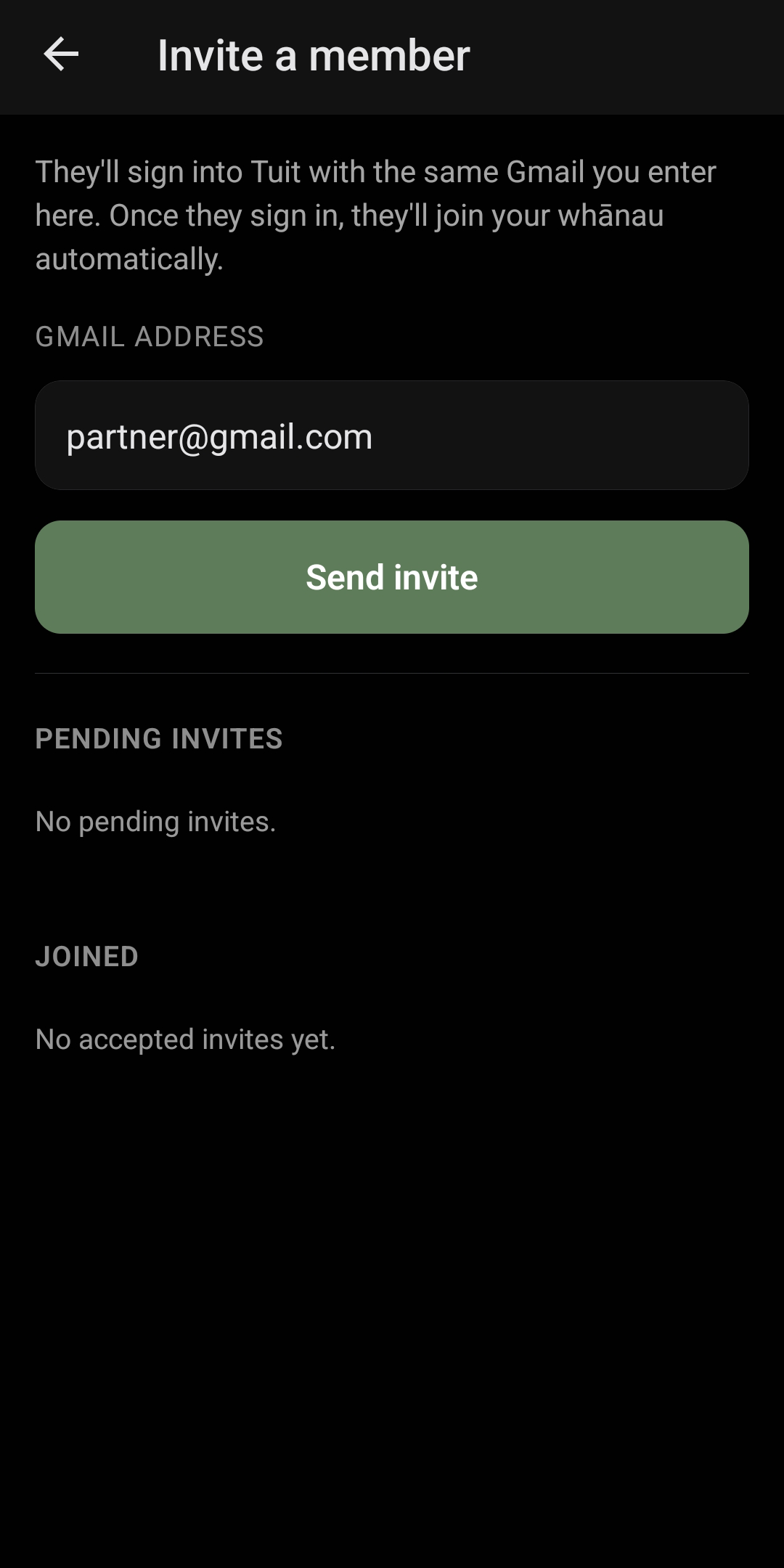
Each user belongs to one household ("whānau"). It can just be you, or you can invite anyone else (partner, flatmate, family member) from More → Whānau → Invite a member. They install Tuit, sign in with the Gmail you invited, and land straight in your household with all chores, lists and care items already in place. Completions are stamped with who did what.
Privacy & data
Short answer: we store what you put in the app plus your Google email + display name. Calendar data stays in Google. See the full privacy page for the long answer.
Spot something missing from this guide? Email hello@gettuit.co and we'll add it.